The Desktop GUI
improv-gui is the egui/eframe desktop front-end, styled after the original
NeXTSTEP Lotus Improv: NeXT's four-level grayscale (no color anywhere, a gray
selection), flat controls with 1 px black outlines, worksheet windows with NeXT
title bars on a dark gray workspace, white grid cells, a formula list in each worksheet window, a floating application menu,
on-grid category tiles for pivoting, a model browser window and an Info panel.
Run it (from the Nix dev shell, which provides the GUI runtime libraries):
bash docs/demo/sample-model.sh sample.db
nix develop -c cargo run -p improv_gui -- sample.db
Pivoting by dragging the Region tile, paging, editing a Quantity cell while
the Revenue worksheet recomputes, selecting a range for its Sum, and adding
a formula. Recorded by docs/demo/gui-movie.sh.
The pivot grid
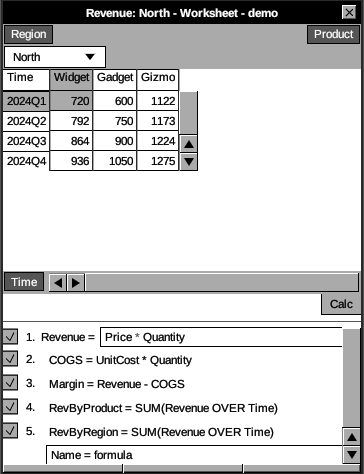
The window has five regions:
- Application menu (floating, top left) — NeXTSTEP's vertical menu. Drag
its black
Improvtitle bar to move it. An item marked with a triangle opens a submenu to its right; click it again, press Escape or click elsewhere to close it. Info ▸ Info Panel… shows or hides the Info panel; File ▸ Save saves the model, Revert to Saved reloads it from the store (the way out of a save conflict), and Import/Export CSV… opens the CSV wizard; Edit has Undo and Redo; Worksheet has Pivot, Add Matrix, Remove Matrix and Save View; View has Model Browser, which shows or hides the model browser, then lists the saved views, with a check on the current one, and picking one switches the workspace to it; Graph ▸ Show Chart toggles the chart; Help ▸ Functions… (also F1) opens the function help; Hide minimizes and Quit closes the window. Format, Print and Services, and New, Open, Save As and Close in the File menu, are not built yet and draw grayed out. Key equivalents, shown at the right of their item, take Ctrl (Cmd on macOS):ssave,zundo,Z(Shift+Z) oryredo,hhide,qquit. They don't fire while a text field has focus. - Model browser (window, bottom left of the workspace) — titled
<file> - Model. It leads with a white list of saved views, oneName - Worksheetrow each with a worksheet icon: click a row to select it and read its description below (measure, categories, pages); double-click to open it. Under that, a name field and Save view save the current canvas. Collapsed below are Categories (with their items) and Measures (each labeledinputorformulaat the right; click one to select it). Its close box hides it; View ▸ Model Browser brings it back. - Worksheet windows (center) — the dark gray workspace holds one
window per matrix, titled
<matrix> - Worksheet - <file>. Drag a title bar to move a window and its bottom bar to resize it (the left third drags the bottom-left corner, the right third the bottom-right). Clicking a window makes it key (black title bar) and gives its matrix the keyboard. With more than one matrix open, each window's close box removes its matrix. Worksheet ▸ Add Matrix opens another window, and Save View records every window's place and size. A fresh window opens right of the menu, sized to its grid. - Pivot grid (in each worksheet window) — the measure projected onto the
current axes. Here Revenue is shown with Product on columns, Time on rows,
and Region paged. The category tiles are dark-gray chips, placed as in
NeXT Improv: page tiles top-left, each above a white item field (click it to
pick the page shown;
[/]and PageUp / PageDown step it too), column tiles top-right, row tiles bottom-left beside the scroller. Drag a tile to another strip to re-pivot without touching the formula (the strips light up as drop targets only while you drag), or right-click it and choose Move to Rows / Columns / Pages. The same menu filters the category: uncheck an item to hide it from this worksheet, or choose Show all; a filtered tile readsName*. Cells are white with thin black rules; the selection and its row and column headers turn gray. Click a cell to select it; double-click it (or press Enter / F2) to edit, Enter to commit, Esc to cancel. Input cells carry a faint underline; hover a derived cell to see its formula. Arrows (orhjkl) move the cursor, andn/ Shift+nshow the next or previous measure. Shift+arrows, Shift+click or a drag select a range, and the status bar shows its Sum. - Formula list (bottom of each worksheet window) — every formula,
numbered, with a Calc button above and a checkbox that enables it.
Click a row to select its measure; the selected row becomes an editor:
Enter commits (re-typechecks and recomputes), Esc reverts. Type
Name = formulaon the last line and press Enter to add a measure. A formula that fails, in either editor, stays as typed with the fault underlined (see Formula errors). - Info panel (window, top right of the workspace, closed at start) — opened by Info ▸ Info Panel…: the selected measure's id, kind, value type, dimensions, dependencies, and formula. Its close box closes it.
- Status bar (bottom) — the last action's outcome (
saved model,recalculated,undo,added Margin, or an error) on the left, cleared after 5 seconds, and the selection's Sum on the right.
The native window title reads Improv — <file> (Untitled in memory), with
a trailing • while the model has edits that are not saved: any edit of an
in-memory model, or a model whose last autosave failed.
Function help
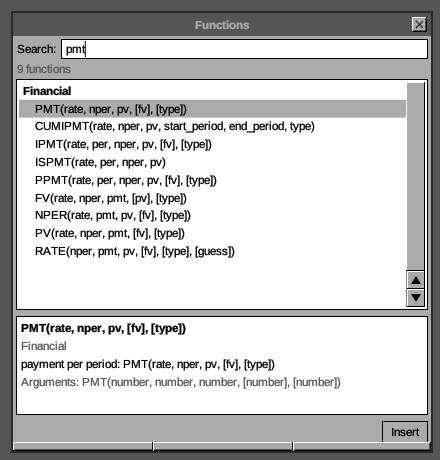
Help ▸ Functions…, or F1 from anywhere (a formula edit included), opens
the Functions window at the workspace's right: a search line, the matching
functions grouped by category with their signatures, and the selected
one's details. The search matches names, aliases and descriptions, best
first (pmt finds PMT, then IPMT, PPMT, …; payment finds them by
description). Up and Down move the selection. The details show the
signature with the parameter names (PMT(rate, nper, pv, [fv], [type]),
[optional], … repeating), the category and aliases, the description,
and the argument types. Insert, a double-click or Enter puts NAME(
into the formula you were editing (the selected row's, else the
Name = formula line), at the caret, and returns the keyboard to it.
Autocomplete
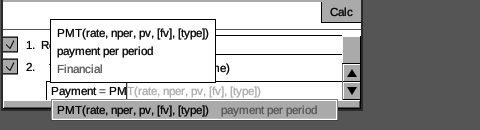
Both formula editors complete as you type. Start a name (PM, Qua, or a
quoted 'Unit) and a list drops under the edit: matching functions with
their signatures and a dimmed one-line description, then the model's
measures and categories, at most eight. Up and Down move the selection;
Tab or Enter accepts it, Esc closes the list. With the list closed, Enter
commits the formula as before. Accepting a function writes NAME( with
the caret after the (; a measure or category named with spaces is
quoted for you ('Unit Cost').
While the caret is at the end of the text, the rest of the selected name
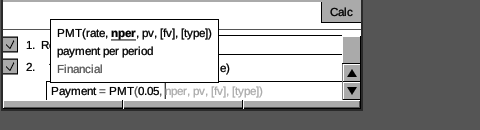
and its parameters trail it in light gray (PM shows T(rate, nper, pv, [fv], [type])). Inside a call the parameters still to give trail it: after
PMT(0.05, they read nper, pv, [fv], [type]). A tooltip over the edit
shows the signature with the argument the caret is in bold and
underlined, the description and the category.
Formula errors
When a formula fails, the place it fails is underlined in the editor, and under the row are the message and, dimmed, why:
- an unknown measure or category:
did you mean Price?, the nearest names in the model (a misspelled function's suggestion is in the message itself:unknown function: PMTT; did you mean PMT?); - the wrong number of arguments: the call's name is underlined, the
message spells the parameters, and the hint says what is off,
missing pv: 2 given; - a
(never closed: that(is underlined,( opened here is never closed: add ); - an aggregation without
OVER: its form,IRR(values OVER T, [guess=0.1]).
A type or dimension error has no position, so the editor underlines the
first function or measure the message names (in Quantity + LEN(Price),
LEN). A row whose saved formula no longer compiles shows its error the
same way. Editing the text clears the mark.
Stacked axes
Drag the Region tile from the top-left pages strip onto the bottom row strip and the row axis becomes the stacked product of Time × Region:
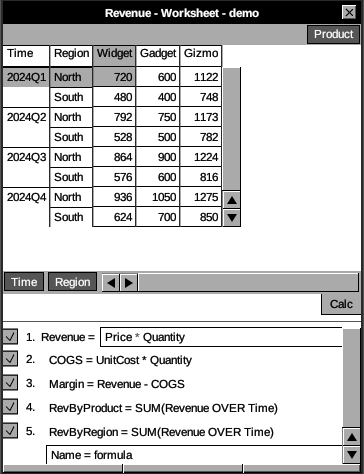
Each Time group (2024Q1, 2024Q2, …) now expands into its Region rows (North / South), with the outer Time label printed once per group. Any number of categories can stack on either axis; the grid renders the full Cartesian product, and rows are virtualized so a stacked axis of millions of lines stays responsive.
Incremental recalculation
Editing an input cell propagates as a delta through differential dataflow — only the touched cells and their dependents recompute. The same behavior on the CLI:
A model in Postgres
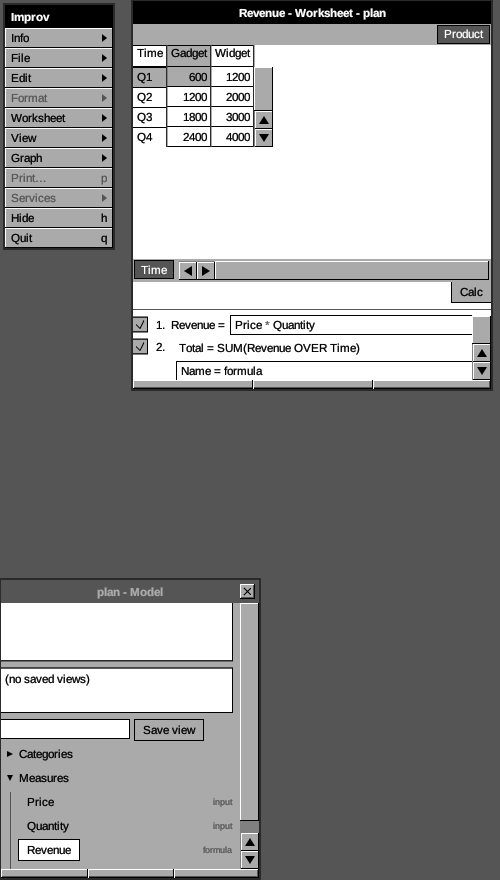
The GUI opens a model stored in Postgres from its URL,
improv-gui 'postgres://me@127.0.0.1/sales?sslmode=disable&model=plan'. Input
measures bound to a table show that table's rows, and editing a cell updates
the row. Here the price of Q1 Widget was changed in SQL, and the GUI shows
the recomputed revenue (1200):
Recording the movie and screenshots
docs/demo/gui-movie.sh rebuilds the demo model, runs the GUI on a headless
X server and records the movie above with ffmpeg, driving it with
xdotool. scripts/gui-shot.sh takes the screenshot the CI compares
against its golden image.